dalEight Live Operating and Beta Testing Guide
This guide is for human beta testers using dalEight on real macOS hardware. The goal is to find confusing setup flows, receive-path failures, hardware quirks, bad status messages, transmit-path failures, and packaging problems before wider distribution.
dalEight is now treated as ready for supervised live FT8 signals and gated RF transmission. Do not modify the app bundle, bypass safety checks, or use external tools to force the radio transmit switch. Start live transmit testing at low power, prefer a dummy load or clear frequency for first checks, and keep Emergency Stop reachable.
What to Report
Good beta reports include:
- macOS version, Mac model, and whether the app was freshly installed or updated.
- Radio, interface, serial adapter, and audio-device names.
- Band, dial frequency, and approximate UTC time of the issue.
- What you expected, what happened, and whether the app recovered.
- Screenshots only when they do not expose information you prefer to keep private.
- Exported RF validation captures only when requested and only after reviewing the exported directory contents.
Please enable diagnostics in the build and use Settings > Diagnostics > Report a bug when reporting bugs. If diagnostics are off or unavailable, copy the status text and note down the steps that led to the issue. Bug reports are processed by Sentry.
First Launch and Installation
Try this on the same Mac you would normally use for radio work.
- Install dalEight from the provided disk image.
- Launch it from
/Applications, not from inside the disk image. - Confirm macOS security and first-launch prompts behave normally.
- Confirm the app explains the empty or disconnected state without leaving blank panels or unexplained disabled controls.
- Quit and reopen the app. Confirm station, hardware, diagnostics, and service preferences are retained.
Report any unsigned-app warning, crash on launch, repeated privacy prompt, missing icon/name, or setting that does not persist.
Station Setup
Exercise setup with realistic and imperfect inputs.
- Enter your callsign and grid.
- Try lower-case callsign input and confirm displayed values are normalized where appropriate.
- Try leaving optional fields empty and confirm the app explains what is still needed.
- Use the location-assisted grid workflow if you are comfortable granting location permission.
- Deny location permission on at least one run and confirm manual grid entry still works.
Report unclear wording, validation that blocks a valid amateur-radio value, or any place where the app seems to require location access unnecessarily.
Radio and Audio
Use Settings > Radio and audio with your actual station hardware.
- Select the radio model, digital sideband mode, CAT serial device, receive audio input, and transmit audio output.
- Connect the radio and confirm frequency, mode, and connection state update.
- Disconnect and reconnect the serial cable while the app is running.
- Start and stop receive audio several times.
- Change audio devices while audio is stopped, then start audio again.
- Confirm the app gives useful guidance when a saved serial or audio device is missing.
- When live transmit testing is in scope, complete transmit audio calibration from the safety section. Confirm Settings > Station > Default transmit power is the intended RF target, use a dummy load or safe RF path, confirm the checklist, transmit each prompted calibration signal, enter observed RF power and optional ALC, and continue until the sheet shows Stable readings 2 of 2 and Calibration complete.
For Xiegu G90 and DigiRig testing, check whether USB-Data/Packet USB is selected by default or is easy to choose. Report any case where the app leaves the radio in an unexpected mode or fails to recover after a disconnect.
When the build owner asks for rapid CAT validation, follow the provided G90 checklist before the longer receive test.
Receive and Decode Workflow
Test on active FT8 bands with the radio and system clock set correctly.
- Start receive audio and watch the waterfall for several complete 15-second slots.
- Confirm the slot clock and system-clock tolerance are understandable.
- Confirm decoded messages appear with useful time, audio frequency, signal strength, and text.
- Select a CQ or contact-related decode and inspect the reply preview.
- Confirm selecting or double-clicking a decode prepares only a reply preview and never enables RF transmission.
- Leave the app running for at least 30 minutes and watch for memory, CPU, audio-level, or decode-list problems.
Report missed obvious decodes, duplicate or stale rows, confusing decode text, waterfall freezes, wrong band/frequency context, and anything that makes it hard to tell whether the app is listening.
Live Transmit and Logging
Use live transmit only after station, radio, audio, clock, modem, and calibration checks are clear.
- Select a CQ and follow the reply-preview inspector through the standard FT8 exchange as matching received messages arrive.
- Confirm selecting or double-clicking a decode does not transmit until you explicitly start the CQ or prepared reply.
- Confirm matching replies advance the contact and prepare the next reply preview.
- Confirm unrelated messages do not advance the contact.
- If assistive repeats are enabled, confirm repeated messages stay within the configured stage limits and stop with clear status when the limit is reached.
- Confirm the next prepared message matches the active station before transmitting.
- Send a CQ or the prepared QSO message only when the app shows transmit ready, the frequency is clear, and your station is configured for low-power FT8.
- Confirm the radio transmit switch keys only during the intended FT8 period and releases at the end of the packet.
- Use the manual log flow for a completed contact.
- Quit and reopen the app, then confirm the recent-contact view still shows the saved contact.
- Export ADIF and inspect the exported file with your normal logging workflow.
- WSJT-X-compatible logged-contact import is already validated for single-entry import and duplicate suppression. Feel free to test and report any issues.
Report any transmit that starts without an explicit operator action, any contact that advances on the wrong station, any packet that starts late or truncates, any failure to release the radio transmit switch, or any log entry with wrong callsign, band, mode, frequency, grid, report, or time.
For transmit-calibration issues, report the selected radio, band, serial device, receive audio input, transmit audio output, target RF power, each prompted gain, observed power, observed ALC if available, stable-reading count shown by the sheet, and whether Emergency Stop released the radio transmit switch.
Safety Checks
These are negative tests. They should prevent transmit before keying or release the radio transmit switch immediately if the packet has already started.
- Confirm the main window and app menu expose Emergency Stop.
- Press Emergency Stop while disconnected, while connected, and while audio is running. The app should remain stable and report that the radio transmit switch was released when relevant.
- Disconnect the radio during polling and confirm the app reports the loss and releases the radio transmit switch.
- Let system time drift out of the displayed FT8 tolerance if you can do so safely, or observe the status on a machine with bad time sync.
- Confirm the first visible transmit-blocking reason is specific enough to act on.
Do not connect the radio to an antenna for negative safety testing unless the test owner explicitly asked for that setup. A dummy load or disconnected transmit path is preferred.
PSK Reporter
Only test PSK Reporter if the beta build owner asks for service validation.
- Start with Send spots to PSK Reporter off and confirm no reporting is implied.
- Enable the service and confirm the app explains what will be sent.
- Decode several real signals and watch the service state.
- Use the manual send action if reports are queued.
- Confirm a dalEight spot appears in the PSK Reporter service view, if service validation is part of the test.
- Turn the service off and confirm the app stops queueing or sending new spots.
Report unclear privacy wording, repeated sends of the same spot, queue state that never clears, network errors without recovery guidance, or spots that appear with wrong callsign, grid, band, mode, or frequency.
Path status is a key PSK Reporter feature. When the build owner asks for beta coverage, flex it during normal operation instead of treating it as an alternate-app-only check:
- Start with Show PSK Reporter path status off and confirm path evidence is not shown.
- Enable the feature and confirm the app explains what evidence it uses.
- Operate dalEight normally with the station callsign and enough on-air activity for reporter evidence to arrive. Use a second FT8 app under the same callsign only when that is the explicit test plan.
- Confirm recent decodes and the QSO inspector show path evidence only when a reporter callsign matches the selected remote station or recent activity.
- Change the selected decode or wait for fresh activity and confirm the path status follows current evidence rather than sticking to an old station.
- Turn the feature off and confirm path badges and service-state updates stop.
Report stale path evidence that never expires or remote-station badges that appear for unrelated reporter callsigns, missing evidence after normal dalEight operation, or service-state wording that makes the feature look experimental when it is behaving correctly.
Diagnostics and Bug Reports
Diagnostics are opt-in.
- Start with diagnostics disabled and confirm the app does not require them.
- Enable anonymous diagnostics and confirm the app describes what is excluded.
- Send a short bug report with no name or email.
- Enable advanced diagnostics only if you are comfortable sending station and device context.
- Send a second report with a name or email if you want follow-up.
- Disable diagnostics and confirm advanced diagnostics also turns off.
Report any wording that feels misleading, any private station data included without advanced opt-in, or any bug-report failure that leaves you unsure whether anything was sent.
RF Validation Capture
Use this when asked to provide receive-quality evidence.
- Connect the radio and start the selected receive audio input.
- Open Settings > Diagnostics and start the RF validation recorder.
- Record at least 10 minutes on each of three active FT8 bands when possible.
- Stop and export the capture.
- Review the exported directory before sharing it.
The export is intended to omit station callsign, grid, serial numbers, audio-device UIDs, and other operator identifiers. Share it only with the build owner or maintainer who requested the capture.
Accessibility and Usability
Spend a few minutes using the app like a normal Mac app, not only like radio software.
- Navigate primary controls with the keyboard.
- Check that Settings tabs, disclosure groups, and inspectors have predictable focus behavior.
- Try light and dark appearance.
- Increase text size or display scaling if that is how you normally operate.
- Confirm color is not the only way to understand health, selection, or safety.
- Look for status messages that are too technical, too vague, or not actionable.
Report any place where the next useful action is unclear.
Real-World Operating Pressure
Use the app in the messier way a normal station session actually happens. The goal is not only to prove the app avoids crashes, but to find places where it survives technically while making the operator work too hard.
- Keep dalEight open while switching between notes, a browser, logging tools, and station-control windows.
- Change bands, audio devices, radio connection state, or Settings tabs while receive is active, then confirm the app returns to a clear listening state.
- Select several different decodes in a busy period and confirm the reply preview, status text, and contact controls always match the selected station.
- Let one expected reply pass by, then resume the contact flow if the app offers a sensible next action.
- Interrupt yourself mid-task, wait a few minutes, then check whether the app makes the current state obvious without rereading every panel.
- Try the same workflow after window resizing, display sleep, or dark/light appearance changes.
Report any situation where the app technically keeps running but leaves you uncertain about whether it is listening, which station is selected, whether a reply preview is current, why transmit is blocked, what will be logged, or what action is safe to take next.
Long-Run Session
Run one longer receive session after the short checks.
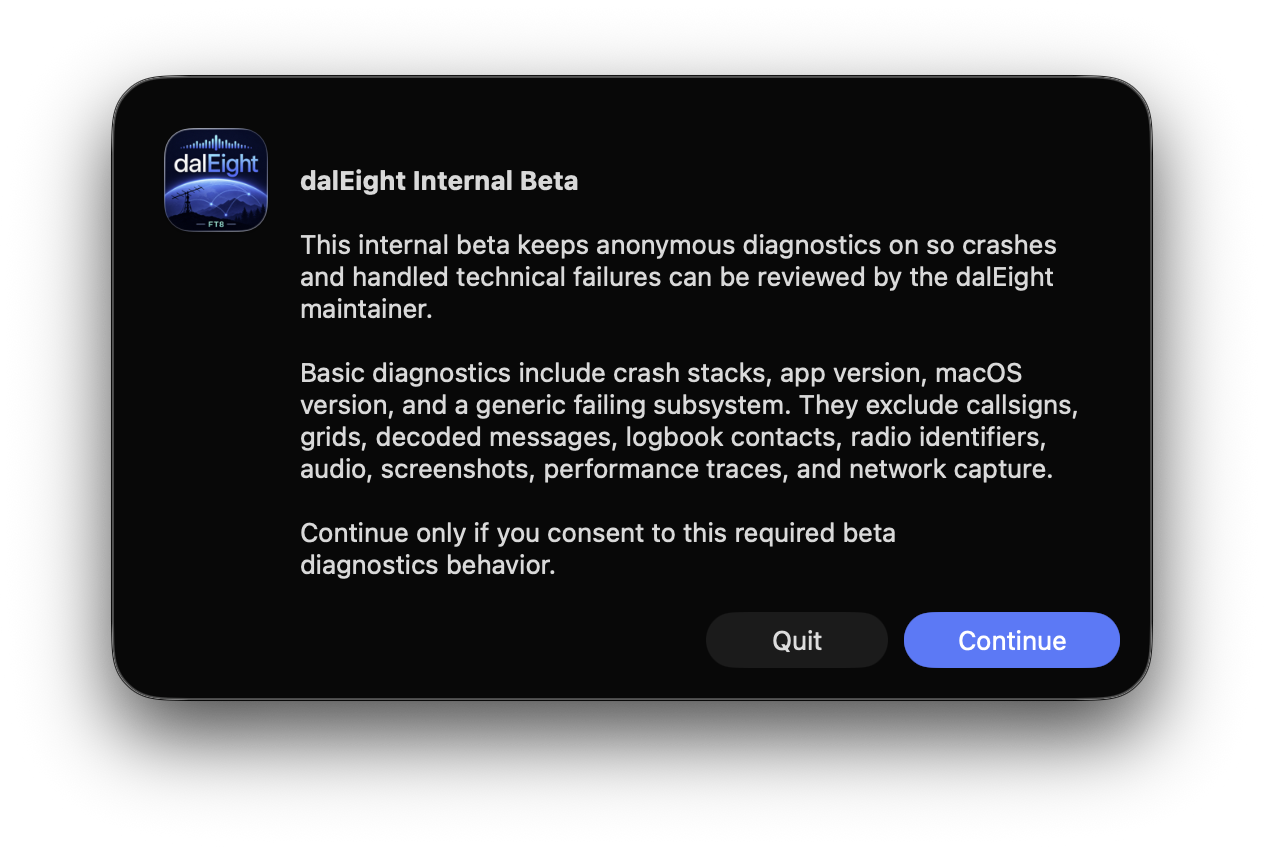
- Start radio control, receive audio, and optional PSK Reporter. Continue past the startup diagnostics consent only if you agree to the beta terms.
- Leave the app receiving for one to three hours.
- Change bands a few times.
- Put the Mac display to sleep and wake it again if that is part of your normal station use.
- Confirm the app still decodes, the radio state is fresh, and the UI remains responsive.
Report increasing CPU, increasing memory, audio dropouts, stale radio state, frozen waterfalls, delayed controls, or any recovery that requires force quit.
Stop Conditions
Stop testing and report immediately if any of these happen:
- The app keys or appears to key the radio unexpectedly.
- Emergency Stop is missing, disabled at the wrong time, or fails to release the radio transmit switch.
- A transmission starts late, truncates, repeats unexpectedly, or uses the wrong message.
- The app sends network diagnostics or station-identifying service data without explicit opt-in.
- The app repeatedly crashes on launch or corrupts saved station/log data.
- The radio is left in an unsafe mode after disconnect, crash, or quit.